Hello. Computers are used almost everywhere in daily life. We also need to use and maintain them carefully. When a computer fails at the worst moment, everyone gets frustrated. Below I collected simple but important tips to reduce failures caused by the environment or by the user.
1. Protect from dust
One of the computer's biggest enemies is dust. Keep the room as dust-free as you can, or keep the computer away from dust. Dust in fans and air channels increases heat and shortens life. Clean the computer regularly.
2. Protect from humidity
Another enemy is humidity. Do not leave the computer in damp places for long; air the room often. Basements, rooms near bathrooms, and very humid spaces are risky.
3. Watch the heat
Overheating is a serious problem. Do not run the computer inside a closed cabinet. Desktop users often put the case in a closed cupboard - that is not recommended. Airflow is required.
If a laptop runs hot, a cooling pad helps. Do not block the vents. Soft surfaces like beds or sofas can close the air channels; use a flat, hard surface. Leaving it in a hot car, near a heater, or in strong sun also causes damage.
4. Be careful with food and drinks
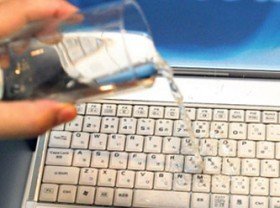
Try not to eat or drink at the computer. Spilled liquids can cause serious damage. Crumbs also lead to long-term faults and hygiene problems.
5. Shut down safely when not in use
If you will not use it for a long time, shut it down safely and store it away from dust and humidity. Leaving it on for no reason shortens the life of the electronics. Avoid force shutdown with the power button; that is risky for disks and SSDs.
6. Carry it in its bag
When you move a laptop, carry it in its bag. Be careful against drops and bumps. Do not leave it in unsafe places or on edges where it might fall.
7. Lock it in shared places
In shared places such as school or a library, lock the screen when you step away. Use a password-protected session. Someone else changing things by mistake can harm both data and software.
8. Take care of the battery
On many new laptops the battery is fixed (not removable). On older models, removing the battery and running only on the adapter is also risky; a power cut can cause sudden shutdown and data loss.
If possible, use the maker's battery health / charge limit setting (often around 50-80%). Leaving it at 100% and plugged in all the time shortens battery life. Avoid charging in extreme heat. Always use the original adapter or one with the correct voltage/amperage.
9. Clean regularly
Do not skip outside and inside cleaning. In dusty places, weekly; at home, every 2-3 weeks is usually enough. On the software side, remove unused programs and files.
Important: If you have an SSD, do not run classic disk defragmentation; it is unnecessary and can be harmful. In Windows, "Optimize" / TRIM is enough. If you still use an old HDD (mechanical disk), defragmentation can still make sense.
10. Power and sudden outages
Poor sockets, cheap extension cords, and voltage spikes can damage the motherboard and power supply. Use a good socket when you can; a UPS helps a lot for desktops. On a laptop the battery already protects against short cuts - that is why running always plugged in with no battery is not recommended.
11. SSD / disk fullness and backup
A nearly full disk (especially over 90%) slows the machine and can hurt SSD life. Back up important files regularly. Even if the device lasts long, data loss is a separate risk.
12. Software health
Do not install piles of antivirus tools; an up-to-date system and reliable protection are enough. Suspicious programs keep the fan running and cause heat and slowdown. Update wisely; instead of turning everything off because "it got slow," check which programs use the resources.
These are the points that come to mind for now. Simple but important steps; they help you use your computer longer with fewer problems.