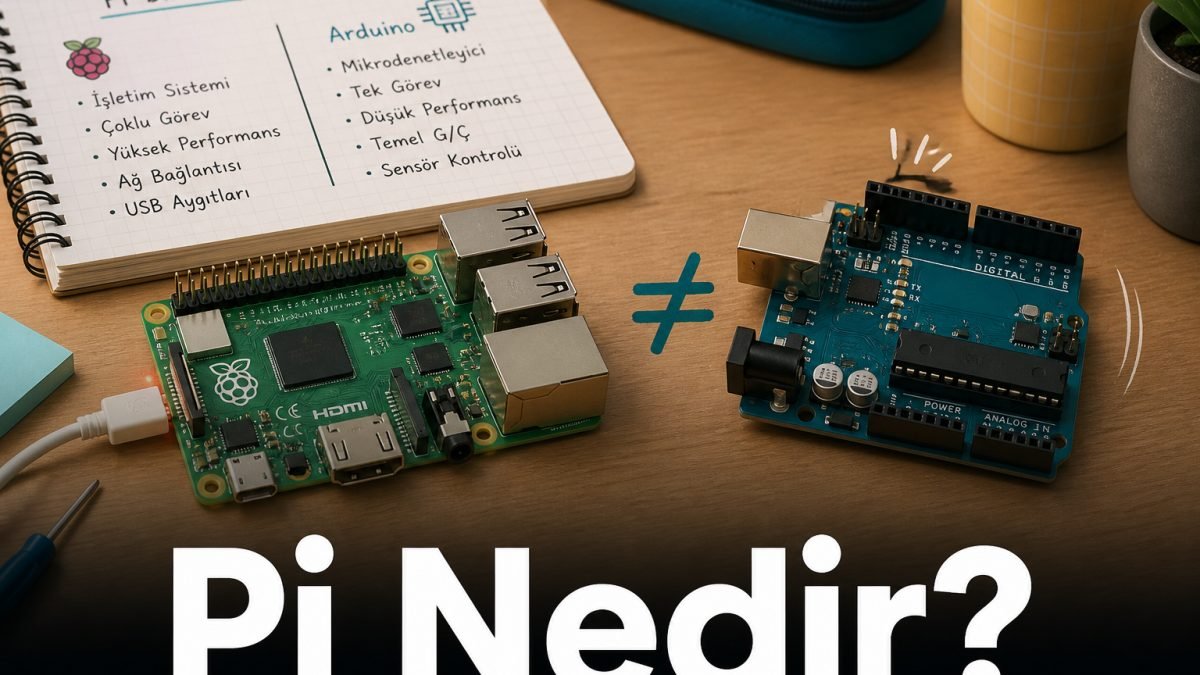
On the shelf you see a small board: a processor, USB ports, an HDMI output, maybe Ethernet. The first reaction is often: "This is something like an Arduino." At the start of the road, that sentence causes confusion. Because a Raspberry Pi is not a typical Arduino board. A Raspberry Pi is a small computer built on a single board (often called a single-board computer / SBC in English).
You can connect a screen, plug in a keyboard and mouse, go online, save files, and write and run Python code. An Arduino is more of a microcontroller board that you program for a specific task: lighting an LED, reading a sensor, controlling a motor with a driver, and similar jobs. Both are valuable in a workshop; but they are not the same device family.
This article is the first part of the starter series in the site's Raspberry Pi category. The goal is not to drown you in model numbers; it is to put the right picture on the table before you sit down. If the picture is right, setup, power, and GPIO topics become less painful.
Short note: Raspberry Pi is not a toy name. It may not be as powerful as your phone; it is still a real computer. A wrong power supply, pulling the plug while it is running, or connecting high current at random — you should not do to this what you would not do to a normal computer.
What exactly is a Raspberry Pi?
Raspberry Pi is an education and hobby computer family developed by the UK-based Raspberry Pi project / company. On classic models (such as Pi 3, Pi 4, Pi 5) you usually see:
- Processor (SoC): The "brain" of the board. Computing and display sides are gathered here.
- Memory (RAM): Open programs run here. The amount changes by model and version.
- Storage: On most models the operating system and files live on a microSD card. (Some newer models also offer extra storage options.)
- Connections: USB, HDMI (or micro-HDMI), audio, Ethernet and/or wireless networking (depending on the model).
- GPIO pins: The row of pins on the edge of the board. Used to connect low-voltage parts such as LEDs, buttons, and some sensors.
In short: a Raspberry Pi may not feel as "complete" as your phone or laptop; but it is a computer that runs an operating system, can join a network, and can keep files.
What is it useful for? (School and workshop view)
- Simple desktop use: Internet, documents, preparing presentations, light office work. Do not expect a strong gaming or video-editing machine.
- Learning to code: Especially writing and running Python code on the computer itself.
- School / workshop projects: An on-screen information board, a small web server, camera trials, collecting and showing sensor data.
- The outside world via GPIO: LEDs, buttons, some low-voltage sensors. Care is required here: GPIO pins usually work with 3.3 V logic; motors and high-current jobs need separate power and a driver.
- Network services: A small server at home or in the workshop, file sharing, a trial web page, and similar work.
Let us make the Arduino difference clear
| Raspberry Pi (classic) | Arduino (typical) | |
|---|---|---|
| What? | A small computer (runs an operating system) | A microcontroller board (runs one program continuously) |
| Startup | The OS loads; a desktop or terminal appears | The program you uploaded starts at once (loop) |
| Storage / files | There is a file system; folders, programs, libraries | Very limited memory; no "computer-like file management" |
| Power and shutdown | A proper shutdown and a sufficient adapter matter | Simpler; still watch short circuits and wrong power |
| When to choose? | Screen, network, camera, files, several jobs together | LEDs, sensors, motor control, fast and simple embedded work |
A sentence often heard in class: "I'll just connect a motor to the Pi and be done." Technically it can be possible in some projects; but you should learn the computer side first. For motors and high current, a driver board, separate supply, and safety are separate topics. Feeding high current into a random pin can damage the board.
Do not mix up the Pico either
A Raspberry Pi Pico is not a classic Raspberry Pi. The Pico is an RP2040-based board closer to the microcontroller family. It does not boot like a classic Pi with a full desktop operating system. Wi‑Fi Pico W models are a separate option.
Saying "I bought a Pi" and then finding a Pico in your hand is a common mix-up. For now, keep this in mind:
- Classic Raspberry Pi — a small computer (PC)
- Raspberry Pi Pico — a small controller (a role closer to Arduino)
Later we will clarify this in more detail in a separate article.
What do you usually need to start?
- A Raspberry Pi board (classic model)
- A microSD card + an operating system written on it (most setups use Raspberry Pi OS; it is Debian-based)
- A suitable power adapter (USB‑C or Micro‑USB depending on the model; a weak phone charger often is not enough)
- Optional: HDMI screen, keyboard, mouse (screenless / "headless" use is also possible)
If you power it with an empty SD card, a black screen is common. That often does not mean "the card is broken"; the operating system is simply not ready yet.
Short notes for students, parents, and teachers
- Student: Learning the Pi as a computer first, then moving to GPIO, makes things easier. The "motor right away" step is often not the right first step.
- Parent: Not every box that says "Pi" is the same thing. Asking whether you need a classic Pi, a Pico, and which model — together with the project — helps.
- Teacher: Building a shared classroom language is already valuable: "This is a computer; not an Arduino." Power and shutdown habits are part of safety too.
Examples close to real life
1. "I plugged it into USB like an Arduino, done"
With Arduino, in most setups you connect the board over USB and upload a program. With a classic Pi, you usually need a microSD card with an operating system first. If the SD is empty, a black screen can be a natural result.
2. Running it from a phone charger
With a weak adapter you may see a lightning warning on the Pi, freezes, or sudden shutdowns. The Pi also needs proper power. Instead of struggling with a cheap random charger, a supply suited to the model should be preferred.
3. Pulling the plug while it is running
This is a habit we dislike on a normal computer too. On a Pi, the SD card file system can become corrupted. Shutting down from the menu or with a command, then unplugging, is safer.
4. The "this was not an Arduino" shock
A student expecting an IDE may be surprised by a desktop. That is normal. Learning to use it as a computer first; then moving to GPIO and electronic connections is healthier.
Practical reminders that can help
- Thinking of the Pi as a "small computer" and treating setup and shutdown like a computer is useful.
- When choosing a project, asking "Do I need a computer, or is Arduino/Pico enough?" helps with the right materials.
- Pushing a motor or 5 V supplies onto a random GPIO pin is risky; in later articles we will enter carefully, step by step.
- Buying the wrong box because you treated Pico and classic Pi as the same thing wastes time and money.
Information note: This content is for informational purposes only. It does not replace official procedures, user manuals, or authorized instructions. For power, pin, and connection decisions, check current product documentation.
Short checklist
- Is the board in my hand a classic Raspberry Pi, or a Pico?
- For this job, do I need a computer, or is a microcontroller enough?
- Is my power adapter suitable for the model?
- Is the microSD / operating system ready?
- Before connecting to GPIO, do I know the voltage and current limits?
What is next?
In this article we clarified what a Raspberry Pi is and why it gets mixed up with Arduino / Pico. In the next article we will look at the confusing question: Which Pi? Is the most expensive one required, and what is enough for school?
The right name, the right expectation; after that it gets easier.